OpenClaw Chrome Extension: Browser Relay Setup, Permissions, and Use Cases (2026)
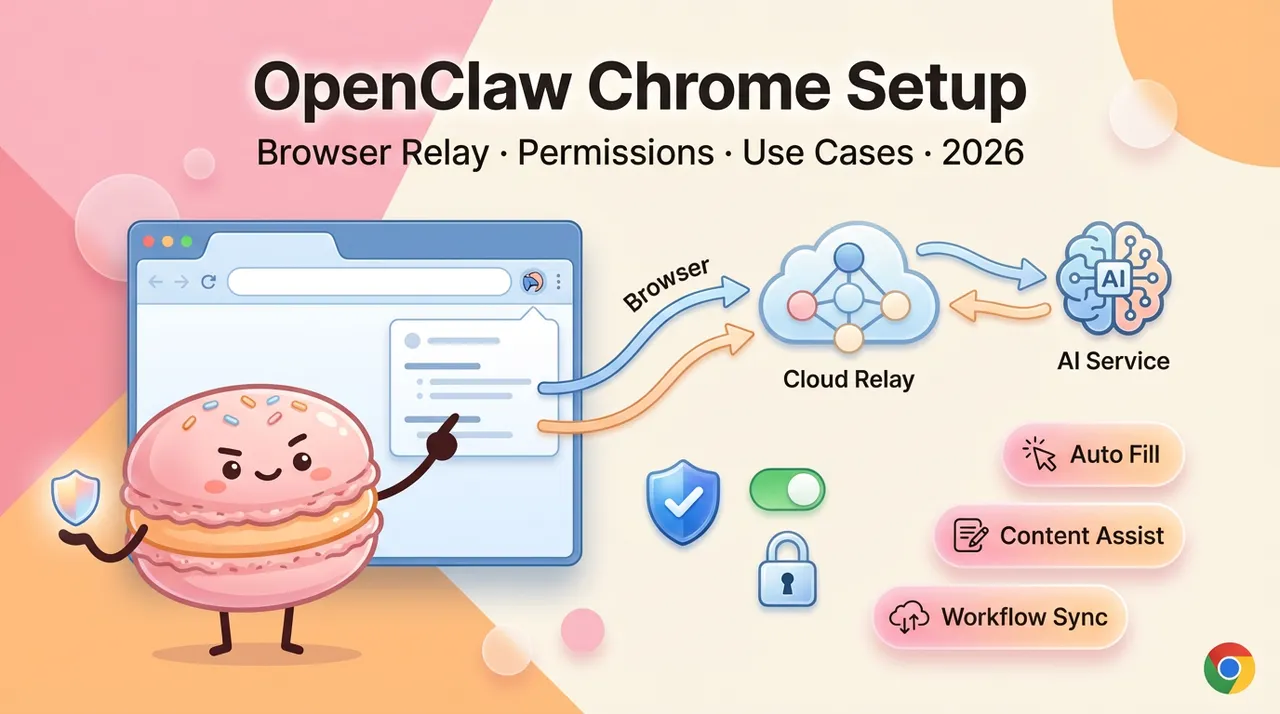
What's up, browser automation tinkerers — if you've ever stared at a "relay not reachable" badge and had no idea why, this one's specifically for you. I'm Hanks. I've been stress-testing OpenClaw's browser control stack inside real daily workflows for the past few weeks, and the Chrome extension setup is the part that trips up the most people. Not because it's badly designed — actually it's quite clever — but because the docs assume you already understand the relay architecture before you read them.
Let me fix that.
What Is the OpenClaw Chrome Extension?

The OpenClaw Chrome extension is a local relay bridge. It connects your existing Chrome tabs — with your real sessions, cookies, and logged-in state — to the OpenClaw Gateway so your AI agent can actually drive them. Think of it as handing the agent a mouse and keyboard pointed at whatever tab you choose to attach it to.
The core tech is Chrome's debugger API (chrome.debugger) — the same low-level protocol that Chrome DevTools uses internally. When attached, it pipes Chrome DevTools Protocol (CDP) commands through a local relay server running on port 18792.
Browser Relay vs. Headless Browser — Key Difference
OpenClaw supports three browser control modes. Choosing the wrong one is the most common setup mistake:
Extension Relay mode is the right choice when your automation needs access to authenticated sessions — your Gmail, a corporate dashboard, any site where logging in manually first is easier than scripting auth. The tradeoff: it's not isolated. The agent has real access to your browser environment. The official docs say it plainly: "Treat it like giving the model hands on your browser."
OpenClaw Managed launches a clean Chromium instance controlled entirely by the agent — better for headless automation pipelines where session context doesn't matter. Use headless for automation. Use the extension only when login and session context matter.
What Tasks Require the Extension
You need the extension specifically when:
- The target site requires you to be already logged in (cookies, OAuth sessions)
- You want the agent to interact with your current browser state, not a fresh profile
- You're doing live page monitoring where authenticated data is involved
- The site aggressively blocks headless browser fingerprints
For everything else — scraping public pages, filling forms on open sites, navigation tasks — OpenClaw Managed mode is safer and simpler.
Installing the OpenClaw Chrome Extension
Finding It in the Chrome Web Store
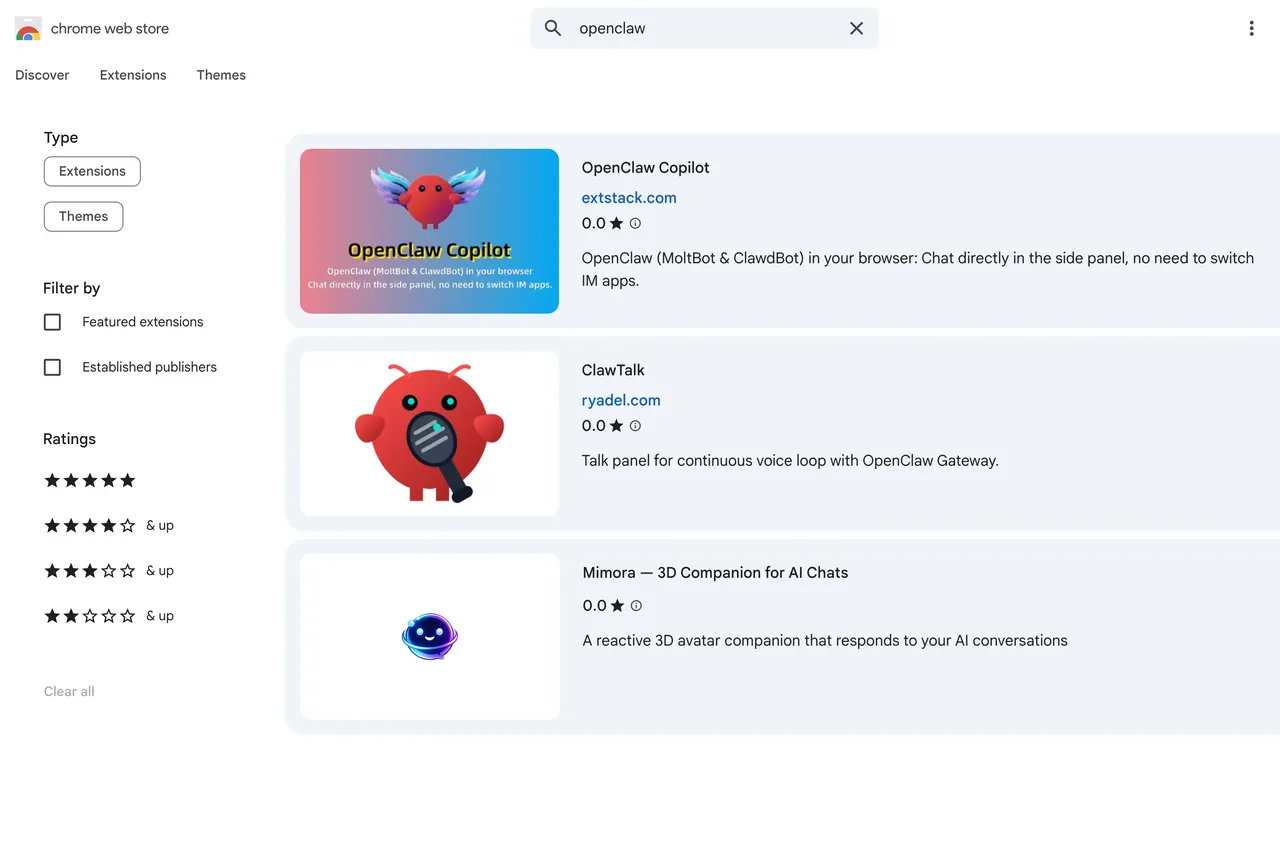
Here's the situation as of February 2026: OpenClaw does not publish an official extension to the Chrome Web Store. The extension ships inside the npm package as static files.
There are community-published versions in the Web Store — the most prominent is "OpenClaw Browser Relay" (ID: nglingapjinhecnfejdcpihlpneeadjp), published by an independent developer who unpacked the relay extension from the official package and uploaded it for one-click installation. The publisher states it's the exact same extension files, unmodified. A second community version with a PAIO branding layer also exists at ID pfhemcnpfilapbppdkfemikblgnnikdp.
Both work. But the canonical, verified path is installing directly from the package.
Manual Install from GitHub (Developer Mode)
This is the method the OpenClaw docs recommend and the one I'd trust for anything production-adjacent:
Step 1: Install the extension files via CLI
# If you installed via npm globally:
openclaw browser extension install
# Verify where it landed:
openclaw browser extension path
This copies the extension to a stable directory under your OpenClaw state folder. The CLI intentionally doesn't point you at the node_modules path — that directory can shift on updates.
Step 2: Load in Chrome
chrome://extensions → Enable "Developer mode" (top right) → "Load unpacked" → Select the path from the previous command
Step 3: Pin the extension to your toolbar
Click the puzzle-piece icon in Chrome's toolbar → pin OpenClaw Browser Relay. You need the badge visible to know what state the relay is in.
Important: If you ever move or delete the installed directory, Chrome marks the extension as broken. Re-run openclaw browser extension install and reload from the new path.
Connecting the Extension to Your OpenClaw Instance
Entering Your Local or VPS Endpoint
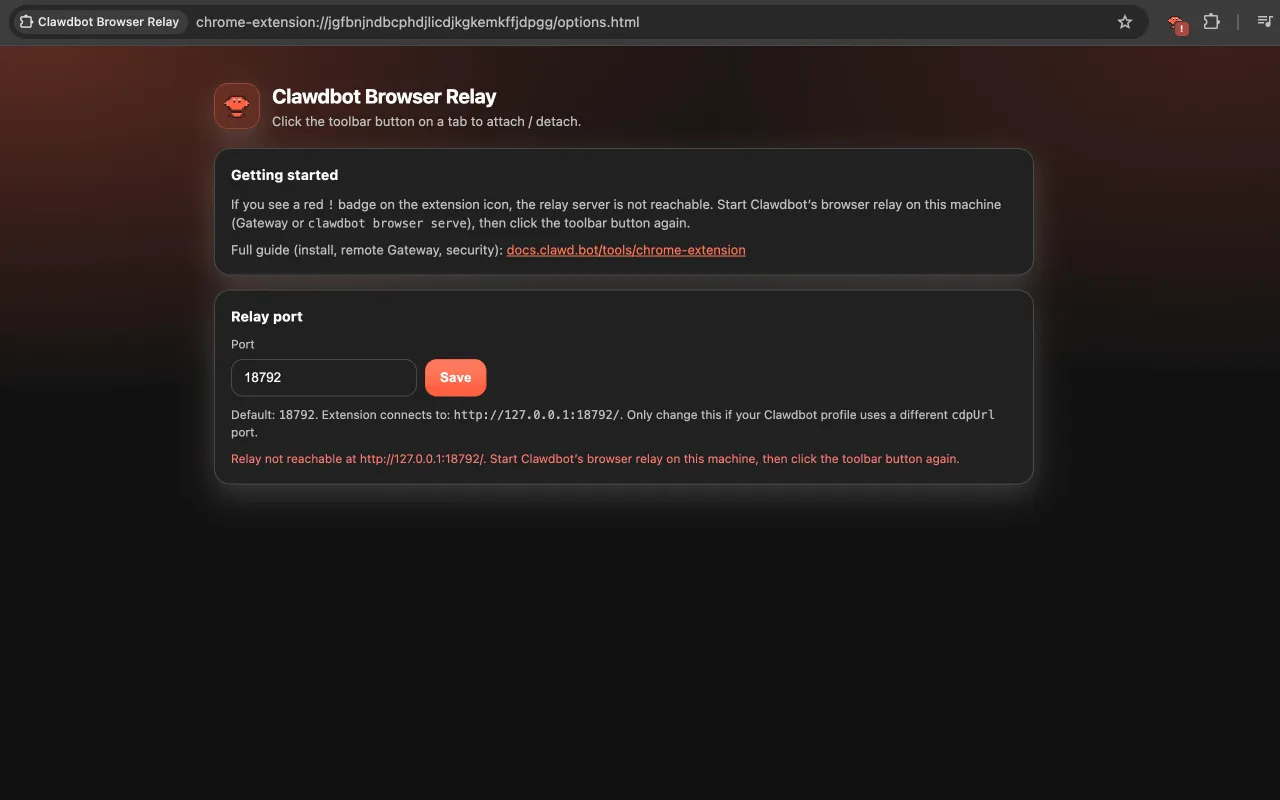
If your Gateway runs on the same machine as Chrome — the default single-machine setup — you don't need to configure anything extra. The Gateway auto-starts the relay server on loopback when it detects the extension. The relay defaults to http://127.0.0.1:18792.
If your Gateway runs on a different machine (VPS, home server, remote Linux box), you need to run a node host on the machine where Chrome is running:
# On the Chrome machine (not the Gateway machine):
openclaw node start
The Gateway will then proxy browser actions to this node host. The extension and relay stay local to the Chrome machine — they never expose traffic to the open internet.
For remote Gateway setups, keep the Gateway and node host on the same Tailscale tailnet. The docs are explicit: avoid exposing relay ports to LAN or public internet.
Authentication and Session Token
The relay implements token auth to prevent unauthorized local processes from hijacking the CDP endpoint. In a standard local setup this is handled automatically. If you're troubleshooting auth failures:
# Check the Options page inside the extension
# It validates relay reachability + gateway-token auth status
The gateway token is set in your OpenClaw config. If you're getting auth errors after a reinstall, regenerate the token and update both the Gateway config and the extension Options page.
Verifying the Connection Is Live
The badge on the extension icon tells you everything:
If you see !: the relay server isn't running on this machine, or the gateway token is wrong. Open the extension Options page — it shows relay reachability status and where the handshake is failing.
Create a named browser profile to lock in your extension relay config:
openclaw browser create-profile \
  --name my-chrome \
  --driver extension \
  --cdp-url http://127.0.0.1:18792 \
  --color "#00AA00"
Permissions Explained — What the Extension Can and Cannot Access
Why These Permissions Are Needed
The extension uses chrome.debugger — a powerful, low-level Chrome API. When attached to a tab, the agent gains the ability to:
- Click, type, navigate, and interact with page elements
- Take screenshots of the attached tab
- Read and manipulate DOM content
- Submit forms and intercept navigation events
These are not polite, high-level permissions. chrome.debugger gives direct protocol-level access to the tab. Chrome shows a persistent warning bar at the top of the browser window whenever the debugger is attached — that's intentional, not a bug.
Privacy Considerations for Self-Hosted Users
The extension communicates only with your local relay server. According to both the official docs and the Chrome Web Store listing, no data is transmitted externally. All relay operations happen over loopback WebSocket (ws://127.0.0.1:18792).
Two things to be deliberate about:
Tab attachment is opt-in and manual. The extension does not automatically control whatever tab you're looking at. You explicitly attach it tab by tab by clicking the toolbar icon. To switch control to a different tab, open that tab and click the icon there.
Sandboxed sessions behave differently. If your agent session runs in sandbox mode (agents.defaults.sandbox.mode != "off"), sandboxed sessions target the sandbox browser by default, not your host Chrome. To use the extension relay from a sandboxed session, you need to explicitly allow host browser control or use the extension from a non-sandboxed session.
Practical Use Cases
Form Filling and Web Scraping via Agent
The most common extension use case: sites that require login before any useful data appears. The workflow:
- Log in manually in Chrome as you normally would
- Attach the extension to that tab
- Ask the agent to extract, fill, or navigate
Example CLI flow for a form fill:
# Take a snapshot to get current element references
openclaw browser snapshot
# Type into field (e12 is the element reference from the snapshot)
openclaw browser type e12 "my input text"
# Always re-snapshot after navigation — element refs change
openclaw browser snapshot --interactive
The --interactive flag on snapshot lets you select elements visually, which is much faster for figuring out which element reference maps to which field.
For batch form filling:
openclaw browser fill \
  --field "username:myuser" \
  --field "email:[email protected]"
Monitoring Pages and Triggering Automations
A pattern that works well in practice: attach the extension to a page you want to monitor, then set up a recurring agent task to snapshot it and trigger actions based on what it finds. The agent can read table data, check for changed values, click pagination, and chain through multi-page workflows.
The key operational rule: always take a fresh snapshot before any action. Element references change after every navigation. Stale refs cause silent failures that look like the agent isn't doing anything — it's doing something, just against an element ID that no longer exists.
Troubleshooting Browser Relay Connection Issues
Run openclaw doctor after any configuration change — it surfaces relay misconfiguration, policy issues, and stale auth tokens before they become real problems.
Already Running OpenClaw? Your Instance Needs to Be Ready First
The extension is the last step, not the first. If your Gateway isn't running cleanly — daemon configured, channels authenticated, openclaw doctor returning clean — the relay will hit ! every time. Before setting up browser automation, make sure your Docker or daemon setup is solid. If you want to automate without managing any of that infrastructure yourself, Macaron runs your AI agent across devices with no Gateway to maintain — try it free and test it against your own tasks.
Frequently Asked Questions
Q: Is the openclaw chrome extension officially published to the Chrome Web Store? No. As of February 2026, the official project does not publish to the Chrome Web Store. The extension ships inside the npm/pnpm package. Community members have published the unpacked extension files to the store for convenience, but the canonical install method is openclaw browser extension install via CLI.
Q: Can the extension control multiple tabs at once? Yes, but you attach each tab separately. Click the extension icon on each tab you want attached. The badge shows ON for each attached tab.
Q: Does the extension work with Firefox or Edge? No. The extension uses chrome.debugger, which is a Chromium-specific API. Chromium-based browsers (Chrome, Brave, Edge) should work in principle, but OpenClaw's tested and documented path is standard Chrome.
Q: What happens to my browser session if OpenClaw crashes mid-task? The chrome.debugger attachment drops when the relay disconnects. Chrome removes the "debugger attached" warning bar. Your session and tabs are unaffected — the agent simply loses control. Reconnect the extension and re-attach to resume.
Q: Is it safe to use the extension with my personal Chrome profile? The extension only accesses the tab you explicitly attach it to. That said, the official docs treat this setup with appropriate seriousness — you're giving the model direct browser access. Consider creating a separate Chrome profile for OpenClaw if you want cleaner separation between personal and agent-controlled browsing.
Q: How is this different from OpenClaw Copilot on the Web Store?"OpenClaw Copilot" is a community-built side-panel chat interface — it lets you talk to your OpenClaw Gateway from a browser panel without switching to a messaging app. It's a different tool from the Browser Relay extension. The Relay extension is for agent-driven automation. Copilot is for human-to-agent chat inside the browser.






Apply to become Macaron's first friends
Company
Browse blogs by Alphabet
Browse blogs by date
Resources
- All tools
- Anorexic BMI Calculator
- Payback Period Calculator
- Stair Calculator
- Engine Horsepower Calculator
- Estate Tax Calculator
- Weight Watcher Points Calculator
- Lean Body Mass Calculator
- Horsepower Calculator
- Cash Back or Low Interest Calculator
- Fat Intake Calculator
- Voltage Drop Calculator
- Number Sequence Calculator
- Roofing Calculator
- Percent Error Calculator
- Internal Rate of Return (IRR) Calculator
- Density Calculator
- Golf Handicap Calculator
- Statistics Calculator
- Greatest Common Factor Calculator


