How to Translate Text in Images for Free: TranslateGemma Image Translation Guide
How to Translate Text in Images for Free: TranslateGemma Image Translation Guide

Hey buddy, I'm Anna. What's new? A photo of a Japanese restaurant menu sat in my camera roll from the week before. I needed to understand it without typing anything out, switching keyboards, or guessing characters. TranslateGemma came up as a tool that could translate directly from images, so I put it to the test. Half-expecting a mess, by the way. Below is an honest account of what worked well, where it fell short, and the everyday situations where it genuinely reduced friction and made tasks smoother.
For context: I tested TranslateGemma image translation in January 2026 on a MacBook Air (M2) using Chrome and on an iPhone 13. No sponsorships. I'm generally skeptical and keep the bar low: if a tool reduces mental load on ordinary tasks, reading menus, screenshots, signs, it sticks. If it adds steps, I forget it exists.

Why Translate Images Instead of Typing Text Manually
Sometimes the text you need isn't text you can copy. Annoying, right? That's where image translation earns its keep. It's not about speed records: it's about removing tiny frictions that derail a simple moment.
Translate Screenshots Without Copy-Pasting
I bump into this with screenshots all the time, someone sends a picture of an article excerpt, or I capture a scene in a show with on-screen subtitles. Copy-paste isn't an option, and manually retyping more than two lines turns a quick task into an errand. TranslateGemma takes the screenshot as-is and pulls out the meaning. On a good image, it's usually one clean step: upload, choose the language, read. Not magical, just less annoying.
In practice, it also helps when I'm mid-task. If I'm planning a trip and saving reference screenshots (hotel signs, museum notices), I can translate them later without reopening 12 tabs or toggling keyboards. Life saver, trust me.
Handle Text You Can't Select (Posters, Handwriting)

The second place this makes sense is when text is baked into the world. Posters, street signs, packaging, a café chalkboard. TranslateGemma can read a decent amount of printed text, and it's surprisingly okay with neat handwriting. My own handwriting? Forget it, it’s hieroglyphic. But clean markers on white paper? Often fine.
This matters less for novelty and more for context. I've used it to check allergy info on a snack label and to confirm a time range on a building notice. Small, practical wins, not exactly headline-worthy, and that's kind of the point.
Step-by-Step: Using TranslateGemma for Image Translation
I didn’t need a tutorial, which was a pleasant surprise. Bless small UX victories. Still, here’s the short version of how I actually use it:
Step 1: Go to the Online Tool
I opened TranslateGemma in Chrome. If you're on mobile, it worked similarly in Safari for me, though the photo picker felt a touch slower. If you prefer official notes, check the tool's help or docs page, they're straightforward.
Step 2: Upload Your Image (JPG/PNG, Keep It Clear)
I dragged a screenshot straight into the window. JPG and PNG both worked. Clarity matters: if the image is a blurry night photo or a compressed social image with artifacts, accuracy drops fast. I had the best results with:
- Even lighting (no harsh glare)
- Reasonable contrast (dark text on light background, or vice versa)
- Text at a readable size (think newspaper body text or larger)
Step 3: Select Target Language and Translate
I chose English as my target most of the time. TranslateGemma auto-detected the source language correctly in most cases, Japanese, Korean, German, Portuguese, Thai all worked during my tests. On one messy photo, it guessed wrong: I switched the detected language manually and that fixed it. Translation usually appeared in a few seconds on desktop: mobile took a beat longer.
Step 4: View and Copy Results
I got the translated text in a plain, scrollable panel. Copying it into Notes or Messages was one click. No fancy formatting, which I prefer, less to clean up. If you care about layout preservation (columns, tables), this isn't a publishing tool: it's more like a quick understanding tool. For me, that's perfect.
Need to translate images in bulk, handle tricky layouts, or add translated text back onto photos without juggling multiple tools? At Macaron, we built a solution exactly for this. Just describe your workflow, and Macaron creates a personalized “Image Translator” that works your way—saving time and mental load. Try it free →

6 Real Scenarios Tested
These aren't lab tests. These are the moments I actually used TranslateGemma between January 8–16, 2026.
Scenario 1: Japanese Restaurant Menu
I had a phone photo of a ramen shop's laminated menu, glossy surface, overhead lights. Not ideal. TranslateGemma did well on the larger dish titles ("tonkotsu," "shio," "miso"), and gave me usable descriptions like "pork-bone broth" and "light salt-based soup." The tiny footnotes about toppings were hit-or-miss, mostly because the glare washed out parts of the text.
Reaction: Mild relief. I didn't need perfection, just enough to order confidently. If I'd retaken the photo without glare, I suspect the footnotes would've landed too.
Scenario 2: Korean Drama Screenshot
I paused a scene with on-screen Korean captions and grabbed a screenshot. Short lines, high contrast, crisp edges. TranslateGemma nailed it. The phrasing was natural enough that I stopped cross-checking with another app after a couple of tries. It didn't preserve line breaks, but I didn't need them.
Reaction: Quiet delight. This didn't save time at first, but it saved attention. I stopped scrubbing back and forth to decode the line.
Scenario 3: Product Manual in German
This was a PDF page with safety warnings. I exported the page as a PNG (to avoid scanning fuss) and fed it in. TranslateGemma handled the main paragraphs well, especially the structured lists. Slightly technical terms ("Erdung" as "grounding") came through correctly. A few compound nouns were translated a bit too literally, but the meaning stayed intact.
Reaction: Useful and trustworthy enough for everyday instructions. If I were wiring a house (I'm not), I'd still double-check with a human or an official manual.
Scenario 4: Thai Street Sign

I took a quick photo from across the street. The letters were small, and the sign had a bright sky behind it, which didn't help. The first go was rough, partial words, odd spacing. I cropped the photo to just the sign and retried. Suddenly readable. The translation was basic but correct: service hours and a short notice about maintenance.
Reaction: A small lesson in pre-work. Cropping before upload matters more than I expected. AWS's OCR documentation confirms that image preprocessing significantly improves recognition accuracy.
Scenario 5: Instagram Post in Portuguese
I downloaded a screenshot of a caption with emojis and hashtags. TranslateGemma ignored most of the emoji (fine by me) and handled the casual tone well. It tripped a bit on slang, it chose safe, literal phrases. Still, I understood the gist without hunting for context.
Reaction: Good enough. Not poetic, but I didn't need poetic.
Scenario 6: Scanned PDF Document
This one tested the limits: a scanned, slightly skewed, grayscale page with a stamped seal. TranslateGemma recognized the text but introduced small errors ("o" vs "0," and some hyphenation quirks). The translation was readable, but I had to fix a couple of numbers manually.
Reaction: Acceptable for a first pass, not archival quality. If you need exact figures, give it a cleaner scan or run it through a dedicated OCR tool first, then translate.
Troubleshooting Poor Results
Most of the "meh" outputs I saw were image issues, not translation issues. A few quick adjustments made a big difference.
Image Too Blurry: Tips for Better Photos
- Move closer and steady the phone against something, table edge, wall, your other hand.
- Avoid glare. Tilt slightly or step to the side. Overhead lights on glossy menus are sneaky.
- Increase exposure a touch, but keep contrast. Over-bright photos wash out thin fonts.
- If you can, retake the photo. A 5-second reshoot beat any amount of prompt tinkering.
Text Too Small: Crop and Zoom First
- Crop the image to the relevant text before uploading. This helped more than any other tweak in my tests. Microsoft's OCR documentation emphasizes that focused, well-cropped images dramatically improve recognition rates.
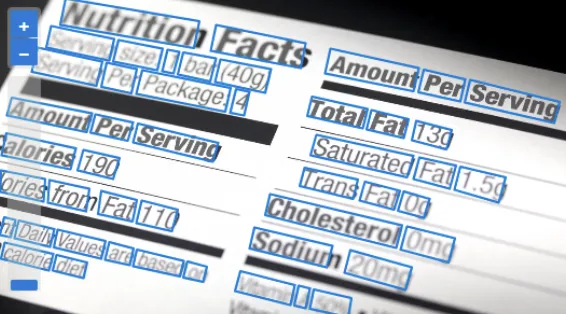
- Rotate to straighten skewed lines: angled text lowers recognition accuracy.
- If you have multiple columns, translate them separately for cleaner results.
Wrong Translation: Try Rephrasing Context
- If auto-detect picks the wrong source language, switch it manually.
- Add a tiny hint if the tool allows notes (e.g., "This is a restaurant menu" or "These are safety instructions"). Context nudged TranslateGemma toward better word choices for me.
- For critical content (medical, legal, precise measurements), use image translation as a starting point, then verify with a second source, another translator or a native speaker if available. Better safe than sorry.
Is there a menu, road sign, or product label in your camera roll that you can't decipher but are too afraid to delete? Quickly toss it to TranslateGemma and give it a try, then come back and tell me:
Did it save your dinner, or did it lead you to order a “mystery surprise”?






Apply to become Macaron's first friends
Read & discover
AI Personal Assistant
Free calculators


