What Is GPT-Live? ChatGPT Voice Explained
What Is GPT-Live? ChatGPT Voice Explained

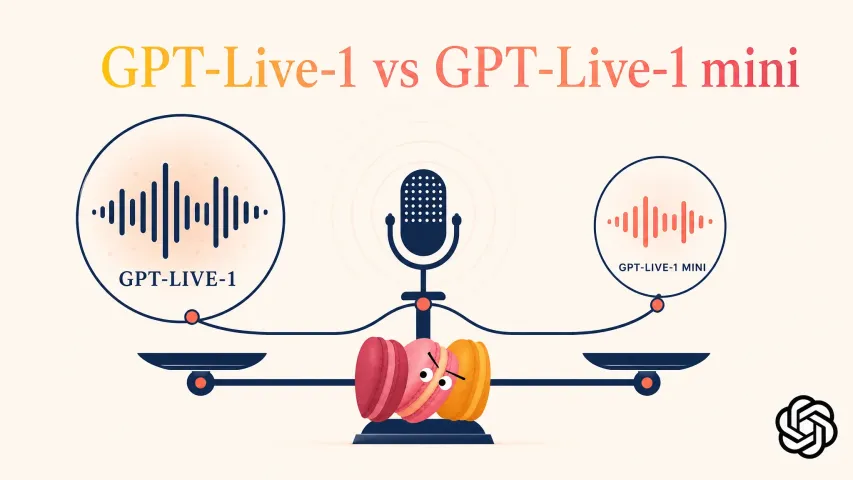
GPT-Live is OpenAI’s new family of voice models for ChatGPT Voice. OpenAI announced it on July 8, 2026, with GPT-Live-1 intended for paid personal plans and GPT-Live-1 mini for Free. Its most noticeable change is not a new button for every user. It is a more continuous conversation style: ChatGPT can listen while it speaks, respond more naturally to interruptions, and keep spoken answers connected to the text and visuals in the chat.
That sounds simple, but voice rollouts are rarely identical for everyone. The option you see can depend on your account, plan, region, app version, and workspace. Before assuming that every mention of GPT Live describes your setup, compare the report with the OpenAI announcement, the current ChatGPT Voice Help Center page, and your own Settings → Voice screen.

What Is GPT-Live?
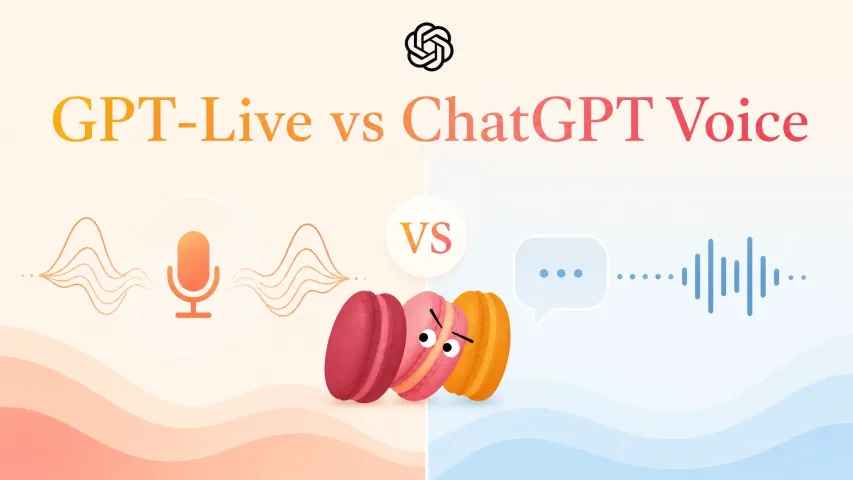
GPT-Live is an OpenAI voice model family designed for continuous spoken interaction. OpenAI describes it as full-duplex, meaning the system can process incoming speech while generating its own speech. In practical terms, you may be able to interject, pause, think aloud, or ask ChatGPT to wait without forcing every exchange into a strict “your turn, then my turn” pattern.
This is different from dictation. Dictation turns a recording into a text prompt that you can review and send. ChatGPT Live Voice is meant for an ongoing, back-and-forth conversation in which you hear responses as they appear in the same chat.

Model name vs ChatGPT voice experience
It helps to separate two labels:
- GPT-Live is the broader voice-model family.
- Live is the Voice option that eligible users may see in ChatGPT settings.
The model currently associated with that experience may depend on the plan. OpenAI’s Help Center says paid personal plans use GPT-Live-1, while Free uses GPT-Live-1 mini. That does not mean most people need to choose a technical model string. For an ordinary ChatGPT user, the meaningful question is whether Live appears under Settings → Voice and which capabilities work in the current conversation.
This distinction also protects against stale screenshots. A post may correctly name GPT-Live-1 while showing an interface that has not reached your account, or it may call the whole feature “GPT-Live” when ChatGPT presents it simply as “Live.”
What Current Reports Say Changed
The main reported changes are now supported by OpenAI’s own ChatGPT release notes. They say GPT-Live-1 can listen and speak at the same time, works inside the normal chat, and places spoken responses alongside streamed text. OpenAI also says Live can use web search and memory and can show supported visual results.
The useful shift is less friction between speaking, listening, reading, and continuing the same thought. You might talk through a question while watching the answer take shape, type when speaking is inconvenient, or return to the chat afterward. That makes Voice feel less like a separate call screen and more like another way to participate in one conversation.

Listening while speaking, interruptions, and streamed text
Full-duplex does not mean flawless hearing. Live is designed to let you speak while ChatGPT is responding, but overlapping voices, background noise, microphone settings, and network conditions can still affect what it hears. A natural pause may still be misread, especially in a noisy room.
If you want space to think, say so clearly at the start: “Wait until I ask you to respond.” If interruptions continue, try headphones, move to a quieter place, or use Voice Isolation on a supported iPhone.
Streamed text is equally important. With Live, ChatGPT’s response appears in text while it is spoken. That gives you something to scan and revisit, but it is not a perfect transcript of the audio. When speech overlaps or moves quickly, the saved transcript may differ from exactly what either side said.

What Users Must Verify in ChatGPT
Do not treat a launch announcement as proof that a feature is active on your account. Your own product interface is the final availability check. Open ChatGPT, go to Settings → Voice, and look for Live, Advanced, or Standard. Then start a low-stakes test conversation and confirm what actually works.
Account, region, plan, app version, and workspace limits
Check these five things before troubleshooting:
- Account: Voice conversations require a signed-in ChatGPT account.
- Region: Live is rolling out globally, but timing can vary by supported region.
- Plan: The available Live model and usage limits can differ between Free and paid personal plans.
- App version: Update the official iOS or Android app. On the web, test ChatGPT.com in a supported, current browser.
- Workspace: OpenAI says Live is not available in Business, Enterprise, or Edu workspaces at launch. If you use both a personal and organizational workspace, check which one is active.
OpenAI also says Live is not initially available in Temporary Chats, the ChatGPT desktop app, Work, Codex, or custom GPTs. Rollout details may change, so recheck the Help Center instead of relying on an old plan chart or social post.
What GPT-Live Does Not Automatically Replace
GPT-Live adds a new Voice option; it does not make every previous mode or visual feature redundant.
Advanced Voice, Standard Voice, video, screen sharing, and GPTs
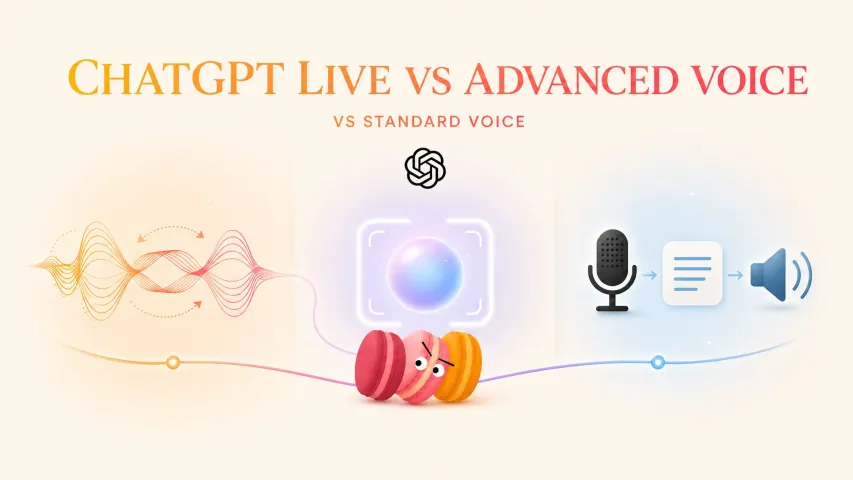
Live is designed for continuous conversation, streamed text, and supported visual results. At launch, however, it does not support video or screen sharing. It also does not initially support connected apps or plugins.
Advanced Voice remains relevant for eligible mobile subscribers who need supported video or screen sharing. Voice conversations with custom GPTs also continue through Advanced Voice rather than Live at launch.
Standard Voice remains the more clearly turn-by-turn option: it transcribes your speech before ChatGPT generates a response. Some people may still prefer that rhythm when they want a stronger boundary between speaking and answering.
The right mode therefore depends on the task. Choose Live for fluid conversation, Advanced for an eligible visual-sharing workflow, or Standard when a more deliberate turn structure feels clearer. Do not assume that “new” means “contains every older capability.”
Why This Matters for Personal AI
Voice can make AI feel present. A system that waits through a pause, acknowledges that it is listening, and lets you interrupt without restarting can be easier to use while cooking, walking, practicing a language, or sorting through an idea that is not fully formed.
More natural voice is useful, but memory and control still matter

Natural timing can create a stronger sense of understanding, but human-sounding conversation is not the same as reliable understanding. A personal AI still needs accurate context, useful memory, clear privacy choices, and a way for you to correct or delete what it remembers. It should also make uncertainty visible rather than letting a confident voice hide it.
That matters most when the conversation involves health, safety, travel timing, money, or another urgent decision. Check dates, locations, and critical instructions against an authoritative source. Review the text, and ask for written steps when precision matters. Voice should reduce friction—not remove your control.
FAQ
What if Live does not appear in Voice settings?
Update ChatGPT, confirm that you are signed in, and check your plan, region, active workspace, and platform. Live is rolling out gradually and may not yet appear for every eligible account. You can continue using Advanced or Standard Voice while you wait.
How should users verify which model is active?
Start with Settings → Voice and the labels visible there. Then compare them with the current ChatGPT Voice Help Center page. Do not infer the active model only from how natural the conversation sounds, and do not assume a third-party screenshot matches your account.
Can GPT-Live details change during rollout?
Yes. Availability, plan access, limits, supported platforms, and feature differences can change. OpenAI’s Help Center and release notes should be checked again before publication or before making a purchase decision.
What should users check before relying on Live for urgent tasks?
Confirm the exact date, time zone, location, and source behind any critical answer. Ask for the response in text, verify it with the relevant official or professional service, and use local emergency channels when immediate safety is involved. Do not rely on Voice as the only source for an urgent decision.
Where should users report Voice behavior problems?
For a problematic response, use the feedback control attached to the message when available. For persistent Voice behavior or account issues, contact OpenAI Support through the chat bubble at help.openai.com and include your platform, app version, plan, Voice option, approximate time, and a concise description of what happened. Check OpenAI Status first if Voice suddenly stops working across devices.
Previous posts: